


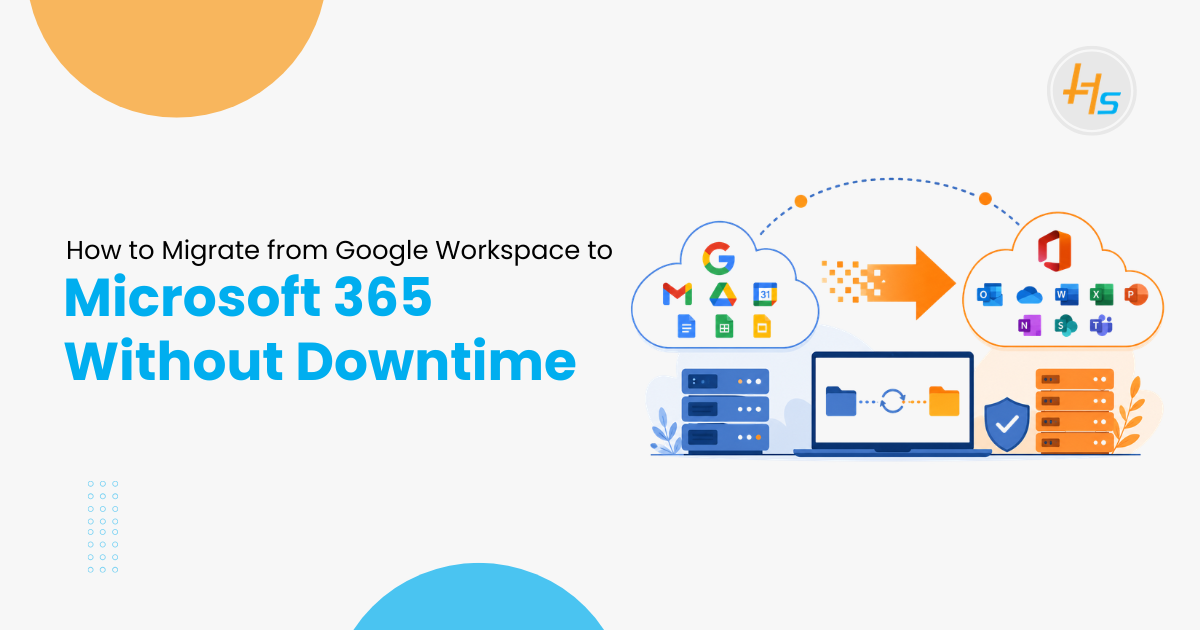
Businesses face real risks when switching collaboration platforms. Studies show 70% of Google Workspace users access tools via mobile phones. Market data reveals Google Workspace holds 50.34% share in office productivity tools, while Microsoft 365 holds 45.46%. Yet enterprises continue migrating to Microsoft 365 for stronger security and enterprise features.
A failed migration costs millions. One tech company lost $6.7 million due to a botched Google to Microsoft 365 migration that nearly destroyed their IPO plans. The good news: a well-planned migration happens with little to no disruption. Your team logs in Monday morning, and everything works better.
Table of Contents
Step 1: Conduct Discovery and Create a Migration Plan
1. Map Your Current Environment
Start by inventorying your Google Workspace setup before touching anything. You need to know:
- How many mailboxes exist
- Total data volume in gigabytes
- What lives on local servers
- Which applications connect to email or files
This inventory drives every decision. It determines which Microsoft 365 plan fits your team. You avoid paying for licenses you won’t use.
2. Set Clear Migration Goals
Define what success looks like:
- Zero email downtime during switchover
- Complete data transfer with no loss
- User training completed before cutover
- Security configured from day one
3. Choose Your Migration Approach
Not every business migrates the same way. Your choice depends on data volume, downtime tolerance, and current email system.
| Organization Size | Recommended Approach | Timeline |
| Small team (under 50 users) | Single cutover over weekend | 1-2 days |
| Medium business (50-500 users) | Staged migration in batches | 2-4 weeks |
| Large enterprise (500+ users) | Hybrid migration with batches | 4-8 weeks |
A small team can move in one cutover. Larger organizations benefit from staged migration that moves users in batches.
Step 2: Clean Up Data Before Migration
1. Archive Stale Mailboxes
A migration is the perfect moment to leave baggage behind. Archive inactive mailboxes before the move. This means you migrate less data and finish faster.
2. Remove Inactive Accounts
Delete user accounts that no one uses. Remove accounts for employees who left the company. This keeps your Microsoft 365 environment tidy.
3. Organize Files
Organize files in Google Drive before moving. Create clear folder structures. Remove duplicate files. You start fresh in a tidy environment rather than copying years of clutter.
4. Best Practice: Set Read-Only Windows
Before cutover, set Google Drive to read-only for critical folders. This prevents changes during final migration sync. Users can still read files but cannot edit them.
Step 3: Migrate Data in the Background
1. Use Microsoft’s Built-In Migration Tool
Microsoft provides a built-in tool for transferring data from Google Workspace. Navigate to the Microsoft 365 admin center and choose the Google Workspace migration option.
2. Install the Migration App
For a standard Migration Manager workflow, follow these six steps:
- Connect to Google: Sign in to your Google account and install the Microsoft 365 migration app in Google Workspace Marketplace
- Scan and Assess: Add Google Drives for scanning. Download scan reports to investigate issues that might block migration
- Copy to Migrations List: Add Google Drives marked as “Ready to migrate” to your migration list
- Review Destination Paths: Microsoft automatically maps source paths to matching destination paths. Review and modify as needed
- Map Identities: Map domains, groups, and users from Google Drive to Microsoft 365. This ensures metadata and permissions migrate correctly
- Migrate and Monitor: Migrate your Google Drives and monitor progress
3. Modern Tools Copy Data While Users Work
Modern migration tools copy mail and files to Microsoft 365 while everyone keeps working in Google Workspace. Users don’t feel anything during this phase. This phase is usually the longest part.
4. Use Incremental Migration
A common approach for file and SharePoint content is initial migration pass well ahead of cutover. This copies most data while people work in the old system. During cutover, run a delta migration to sync last-minute changes.
Migration tools support this by letting you re-run jobs and copy only what changed. The same idea applies to mailboxes using staged Exchange migration.
5. Monitor Migration Status
Initiate a migration batch in the Exchange admin center. Monitor the status and resolve errors as they arise. You can configure settings like excluding certain folders or labels.
How IoT Applications Improve Operational Efficiency in Manufacturing
Step 4: Set Up Mail Routing for Coexistence
1. Create Subdomains Before Cutover
Before initiating migration, complete these prerequisites:
- Create a subdomain for mail routing to Microsoft 365
- Create a subdomain for mail routing to your Google Workspace domain
- Provision users in Microsoft 365
2. Configure Mail Routing
Create a subdomain for routing emails to Microsoft 365. Create another subdomain for routing to Google Workspace. This lets you move users in batches while email flows to both systems.
You can migrate these functionalities from Google Workspace to Microsoft 365:
- Mail and Rules
- Calendar
- Contacts
Step 5: Run a Pilot Migration First
1. Why Pilot Migrations Matter
A pilot migration is a test run of your migration. It involves migrating a limited set of data and subset of users as a proof of concept.
A pilot helps you:
- Validate your migration approach and tools in real-world scenarios
- Uncover technical problems not evident during planning
- See how users are affected
- Get feedback to refine training or adjust the process
2. Choose Your Pilot Group
Select participants that are representative of your broader migration but low-risk. This could be one non-critical department or volunteers from different teams.
Make sure your group is big enough for meaningful feedback. Migrating one user’s files might not tell you much. A small department’s SharePoint site, OneDrives, and mailboxes work better.
Include a mix of content types:
- One SharePoint site
- A batch of mailboxes
- Files from a network drive
3. Run the Pilot Like Real Migration
Follow your runbook and use the same tools. Migrate pilot data using your chosen tool (think a few hundred GB of files or mailboxes). Have users start working in Microsoft 365 once pilot completes.
Offer support and create a feedback channel. Monitor results by verifying permissions and checking files open correctly.
4. Evaluate and Adjust
After the pilot, review these questions:
- Did the migration tool perform as expected? Any errors or slowdowns?
- Did any content fail to migrate—and why?
- Did the timeline match your estimates?
- What did users experience?
Use findings to tweak your plan. This could mean technical adjustments like updating a mapping file. It could also mean procedural tweaks like reworking a comms email.
Step 6: Execute Cutover with a Safety Net
1. Schedule Cutover for Off-Hours
The cutover happens when email officially starts flowing to Microsoft 365. Schedule this for off-hours like Friday at 5 PM or weekend. Because data was pre-staged, the switch itself is quick.
2. Final Communication to Users
Send final reminders before migration date. Include:
- The timeline: “On Friday at 5 PM, systems go read-only. By Monday morning, you’ll use new Microsoft 365 apps”
- What they need to do: Most users don’t lift a finger. If they do (like logging out), make instructions clear
- How to get help: Share helpdesk email, phone number, or Teams channel
- What to expect: “Your N: drive files are now in SharePoint site”
3. Prepare Your IT Team
Take one last backup of critical data. This is your safety net. Make sure every team member knows their role. Stick to the runbook.
Keep open communication among the migration team during the event. Use a conference call bridge or Teams chat for real-time coordination.
4. Update DNS Records
Once migration is verified, update your MX records to point to Microsoft 365. This routes all new emails to your Microsoft account.
Redirect mail flow to Exchange Online by updating DNS MX records. Prompt users to restart Outlook so it connects to the new server.
5. Keep Old System as Fallback
A good plan keeps the old system available as fallback for a short window. There’s always a way back if something unexpected appears.
Step 7: Post-Migration Validation and Smoke Testing
1. Run Smoke Tests Before Declaring Success
Before declaring “all clear,” run smoke tests in the live environment. This quick check makes sure everything works as expected.
Cover these checks:
- Open sample files in SharePoint and OneDrive: Confirm they’re accessible and permissions carried over correctly
- Check key SharePoint sites: Verify they’re up and fully populated
- Log in as test users: Confirm they access email, calendar, and files without hiccups
- Check Microsoft Teams: Ensure chats, channels, and membership are intact
- Run automated checks: Some tools give summary like “X of X items succeeded”
You aim for 100% success. Get clear visibility into what didn’t transfer and why.
2. Verify Data Integrity
Users should open the new system and find everything intact. Emails, files, and content must be fully intact. We cannot emphasize this enough: always verify data integrity.
If users find things missing, trust erodes quickly. Encourage pilot users to double-check their content made it over. Offer early access so users validate data before everyone goes live.
3. Provide Post-Migration Support
Be ready for the first few days. Having a “war room” (even virtual) where IT stands by makes a big difference. Fast responses squash concerns before they spread.
Track every issue. If you notice repeat questions, send a quick FAQ update. Example: “Some of you asked about X—here’s how to find it”.
4. Invite Users to Validate
Invite users to check for missing items. A message like “Please check your team’s SharePoint files and flag anything off” gives ownership. When they report issues and you fix them fast, trust builds.
Step 8: Configure Security from Day One
1. Enable Multi-Factor Authentication
Microsoft 365 includes powerful security features, but many aren enabled by default. Multi-factor authentication should be configured as part of migration. Do not bolt it on later.
2. Set Up Conditional Access
Configure conditional access policies during migration. This controls who can access resources from where.
3. Configure Sharing Controls
Set proper sharing controls from the start. Define who can share files externally. Migrating is the ideal time to get security posture right.
When to Hire Microsoft 365 Consulting Services
Complex Migrations Need Expert Help
Some projects have special considerations that require expert help. Coexistence periods get messy fast when some users stay on old email while others move. Keep coexistence short or bring in expert help if it gets too complex.
Tenant-to-tenant migrations add extra layers after mergers. Things like Teams and OneDrive migrations become tricky when user accounts don’t match. You need to reassign licenses and reconfigure Office apps.
A Microsoft 365 Consulting Company provides end-to-end support from planning to execution. Their experts handle data integrity, compliance, and security requirements.
What Consulting Services Deliver
Microsoft 365 Consulting Services include:
- Managed pre-migration assessments and readiness checks
- End-to-end Office 365 migrations for enterprises with thousands of users
- Migrations across hybrid, multi-tenant, and cloud-only environments
- Data integrity and compliance requirements including retention policies
- Post-migration optimization and governance
Certified Microsoft Cloud Solutions Providers specialize in guiding businesses through cloud migrations. They offer complete solutions for technology support needs.
Cost Savings Through Consulting
Consulting firms offer discounted Microsoft 365 licenses through CSP programs. This helps organizations reduce costs across M365, O365, Azure, and Dynamics 365.
Partner with a Data Migration to Microsoft 365 Consulting Company to ensure data moves safely without business interruptions.
Ensure a Smooth Transition with Google Workspace to Microsoft 365 Migration Services
Choosing the right migration partner is essential for businesses that want to move from Google Workspace to Microsoft 365 without disrupting daily operations. From email and calendar migration to contacts, files, and user data transfer, organizations need a secure and well-planned migration process that minimizes downtime and protects critical business information.
At HashStudioz, we provide reliable Google Workspace to Microsoft 365 Migration Services designed to deliver a seamless and secure transition. Our experts handle data migration, account configuration, permission management, and post-migration support to ensure business continuity throughout the process.
Partner with our experienced team to simplify your migration, maintain productivity, and take full advantage of Microsoft 365 with confidence.
Conclusion
A Microsoft 365 migration is invisible to most of your team. They log in Monday morning and everything works, just better. The difference between smooth cutover and chaotic one comes down to preparation. Follow the discovery, cleanup, background migration, pilot, cutover, and validation steps.
Your team appreciates the upgrade when change feels seamless. The true mark of success is users barely noticing the change. A certified Microsoft 365 Consulting Company ensures minimal disruption. Professional Microsoft 365 Consulting Services eliminate risk through calculated switchover processes. These services guarantee zero email downtime during your transition.
Frequently Asked Questions (FAQ)
1. How long does a Google Workspace to Microsoft 365 migration take?
Migration time depends on your organization size and data volume. Small teams (under 50 users) complete in 1-2 days using single cutover. Medium businesses (50-500 users) need 2-4 weeks for staged migration. Large enterprises (500+ users) require 4-8 weeks for hybrid migration with batches.
2. Will my team lose emails during the migration to Microsoft 365?
No, you will not lose emails if you follow zero-downtime migration best practices. Modern tools copy mail and files while users keep working in Google Workspace. The background migration phase transfers all data before cutover, so switching is quick with no email loss.
3. What happens to my Google Drive files after migration?
Your Google Drive files move to OneDrive and SharePoint in Microsoft 365. Microsoft automatically maps source paths to matching destination paths during Migration Manager setup. Files retain their folder structure, and permissions carry over correctly when you map identities from Google to Microsoft 365.
4. Do I need to hire a Microsoft 365 Consulting Company for migration?
Small teams can migrate independently using Microsoft’s built-in tools. However, complex projects need expert help. Coexistence periods where some users stay on old email while others move get messy fast. A Microsoft 365 Consulting Company provides end-to-end support, handles data integrity, compliance, and security requirements.
5. Can users continue working in Google Workspace during migration?
Yes, users continue working normally during the background migration phase. Modern migration tools copy data to Microsoft 365 while everyone keeps using Google Workspace. Users only switch to Microsoft 365 during the cutover, which happens quickly after all data is pre-staged.